
Usability
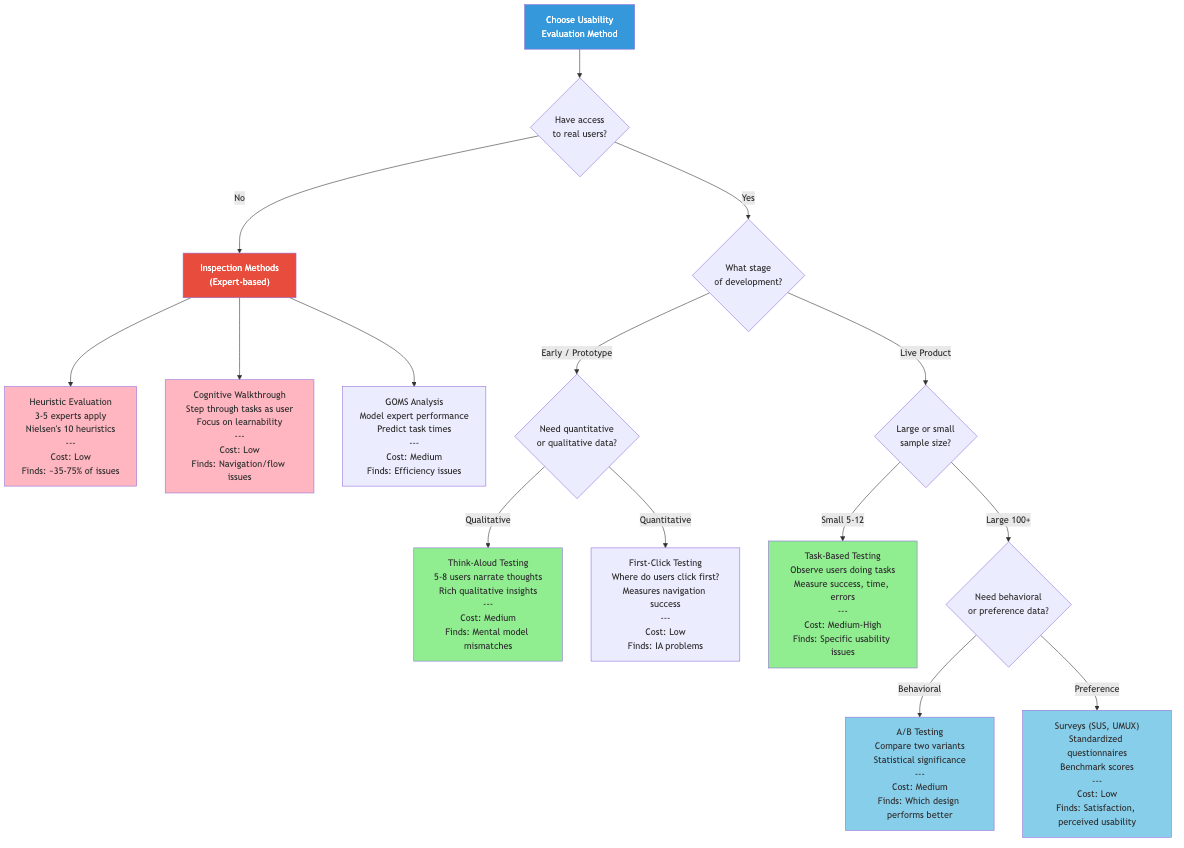
Defining Usability
ISO 9241-11 defines usability as the extent to which a product can be used by specified users to achieve specified goals with effectiveness, efficiency, and satisfaction in a specified context of use.
Five quality components (Nielsen):
- Learnability: How easily first-time users accomplish basic tasks
- Efficiency: How quickly experienced users perform tasks
- Memorability: How easily users re-establish proficiency after a period away
- Errors: How many errors users make, how severe, and how easily recovered
- Satisfaction: How pleasant the experience is
Nielsen's 10 Usability Heuristics
1. Visibility of System Status
The system should keep users informed about what is going on through appropriate feedback within reasonable time.
- Loading spinners, progress bars, upload percentages
- "Saving..." / "Saved" indicators
- Active states on navigation items showing current location
- Character counts on limited text fields
2. Match Between System and the Real World
Use language, concepts, and conventions familiar to the user rather than system-oriented terms.
- Use "Shopping Cart" not "Order Accumulation Buffer"
- Folder and file metaphors in file systems
- Calendar interfaces that resemble physical calendars
3. User Control and Freedom
Users often choose system functions by mistake and need a clearly marked "emergency exit."
- Undo/redo support
- Cancel buttons on dialogs
- Back navigation
- Draft auto-saving (email, documents)
4. Consistency and Standards
Users should not have to wonder whether different words, situations, or actions mean the same thing.
- Internal consistency: Same patterns within the product
- External consistency: Follow platform conventions (e.g., Ctrl+C for copy on Windows)
- Consistent placement of navigation, search, and actions
5. Error Prevention
Prevent errors before they occur rather than relying on error messages.
- Confirmation dialogs for destructive actions ("Delete 47 files?")
- Input constraints (date pickers instead of free text)
- Disabling invalid options rather than allowing selection then showing error
- Inline validation during form entry
6. Recognition Rather Than Recall
Minimize memory load by making objects, actions, and options visible.
- Dropdown menus over blank text fields where options are finite
- Recent items and search suggestions
- Tooltips on icons
- Contextual help and examples in form fields
7. Flexibility and Efficiency of Use
Accelerators, unseen by novices, speed up interaction for experts.
- Keyboard shortcuts
- Touch gestures (swipe to delete)
- Customizable toolbars and workflows
- Command palettes (Ctrl+K / Cmd+K)
- Templates and defaults
8. Aesthetic and Minimalist Design
Every extra unit of information competes with relevant information and diminishes relative visibility.
- Remove decorative elements that do not serve a function
- Progressive disclosure: show essentials first, details on demand
- Whitespace as a design element, not wasted space
9. Help Users Recognize, Diagnose, and Recover from Errors
Error messages should be expressed in plain language, precisely indicate the problem, and constructively suggest a solution.
BAD:  "Error 0x80070005"
BAD:  "Invalid input"
GOOD: "Password must be at least 8 characters. You entered 5."
GOOD: "We can't find that page. Try searching or go to the homepage."
10. Help and Documentation
Ideally the system is usable without documentation, but help may be necessary. It should be easy to search, focused on the user's task, and list concrete steps.
- Contextual tooltips and inline help
- Searchable help center
- Guided tours for onboarding
- FAQ for common issues
Evaluation Methods
Cognitive Walkthrough
Evaluators step through a task from the user's perspective, asking at each step:
- Will the user try to achieve the right effect? (correct goal formation)
- Will the user notice that the correct action is available? (visibility)
- Will the user associate the correct action with the desired effect? (label/affordance clarity)
- If the correct action is performed, will the user see progress toward the goal? (feedback)
Best for: Evaluating learnability. Works without users. Focuses on first-time or infrequent use.
Heuristic Evaluation
Expert reviewers independently examine the interface against heuristics (typically Nielsen's 10), then consolidate findings.
Process:
- Brief evaluators on the system and target users (15-20 min)
- Each evaluator independently inspects the interface (1-2 hours)
- Each records violations with severity ratings
- Consolidation session: merge findings, discuss, prioritize
Severity scale:
| Rating | Meaning |
|---|---|
| 0 | Not a usability problem |
| 1 | Cosmetic problem --- fix if time allows |
| 2 | Minor problem --- low priority fix |
| 3 | Major problem --- important to fix, high priority |
| 4 | Usability catastrophe --- must fix before release |
Finding coverage: 3-5 evaluators find ~75% of usability problems (Nielsen & Molich, 1990). Diminishing returns beyond 5.
Usability Testing
Observing real users attempting real tasks with the product.
Moderated Testing
A facilitator guides participants through tasks, asking questions and probing behavior.
- In-person: Rich observation of body language and context
- Remote moderated: Screen sharing + video call. Wider geographic reach.
Unmoderated Testing
Participants complete tasks independently, recorded by software.
- Lower cost, faster recruitment, larger sample sizes
- Less insight into why users behave as they do
- Tools: UserTesting, Maze, Lookback
Think-Aloud Protocol
Users verbalize their thought process while performing tasks.
- Concurrent: Users narrate as they work (may alter behavior)
- Retrospective: Users review a recording and explain their actions afterward (more natural behavior but relies on memory)
A/B Testing
Compare two variants with real users to measure which performs better on a specific metric.
Control (A):  Current design
Variant (B):  Modified design (single change ideally)

Randomly assign users -> Measure target metric -> Statistical significance test

Example:
  A: "Sign Up Free" button     -> 3.2% conversion
  B: "Start Your Free Trial"   -> 4.1% conversion
  p-value: 0.003 (significant)
Requirements: Sufficient traffic, clear success metric, adequate test duration (typically 2-4 weeks minimum), single variable change for clean attribution.
Usability Metrics
System Usability Scale (SUS)
A 10-question standardized questionnaire yielding a score from 0-100.
Scoring:
  Odd questions (1,3,5,7,9):  score = response - 1
  Even questions (2,4,6,8,10): score = 5 - response
  SUS Score = sum of all scores * 2.5

Interpretation:
  < 50:  Poor (F)
  50-67: OK (D-C)
  68:    Average
  68-80: Good (B)
  80-90: Excellent (A)
  > 90:  Best imaginable (A+)
Task-Based Metrics
| Metric | What It Measures | How to Calculate |
|---|---|---|
| Task completion rate | Effectiveness | Successful completions / Total attempts |
| Time on task | Efficiency | Duration from task start to completion |
| Error rate | Error-free rate | Errors per task or per user |
| Clicks/taps to completion | Efficiency | Number of interactions to complete task |
| Task-level satisfaction | Satisfaction | Post-task rating (SEQ, ASQ) |
Learnability Measurement
Track performance over repeated trials:
Time
  |
  |●
  |  ●
  |    ●
  |      ●  ●  ●  ●     <- asymptote (skilled performance)
  |________________________
       Trial number

Steep initial drop = high learnability
Low asymptote = high efficiency
Efficiency Metrics
- Expert performance time: Benchmark task time for trained users
- Relative efficiency: Novice time / Expert time (closer to 1.0 = more learnable)
- Throughput: Tasks completed per unit time
Planning a Usability Study
Study Design Checklist
- Define objectives: What questions need answering?
- Identify participants: 5 users per distinct user group finds ~85% of usability problems
- Write task scenarios: Realistic goals, not step-by-step instructions
- Prepare materials: Prototype/product, consent forms, recording setup
- Pilot test: Run 1-2 pilots to refine tasks and timing
- Conduct sessions: Typically 45-60 minutes each
- Analyze and report: Prioritize findings by severity and frequency
Writing Good Task Scenarios
BAD (leading):
  "Click the 'Account' menu and change your email address."

GOOD (goal-oriented):
  "You've recently changed your email address to jane.doe@newmail.com.
   Update your account to use this new email."
Good scenarios: provide motivation, use the user's language, specify the goal without revealing the path, and are realistic.
Discount Usability Methods
When time and budget are limited:
| Method | Cost | Time | Insight Quality |
|---|---|---|---|
| Heuristic evaluation | Low | Hours | Moderate |
| Cognitive walkthrough | Low | Hours | Moderate (learnability) |
| 5-user usability test | Medium | Days | High |
| Guerrilla testing | Low | Hours | Moderate |
| First-click testing | Low | Hours | Narrow but useful |
| Card sorting | Low | Days | High (for IA) |
Guerrilla testing: Approach people in public spaces (coffee shops, lobbies) for quick 5-10 minute tests on a prototype. Low rigor, high speed, useful for catching obvious problems early.